Overview
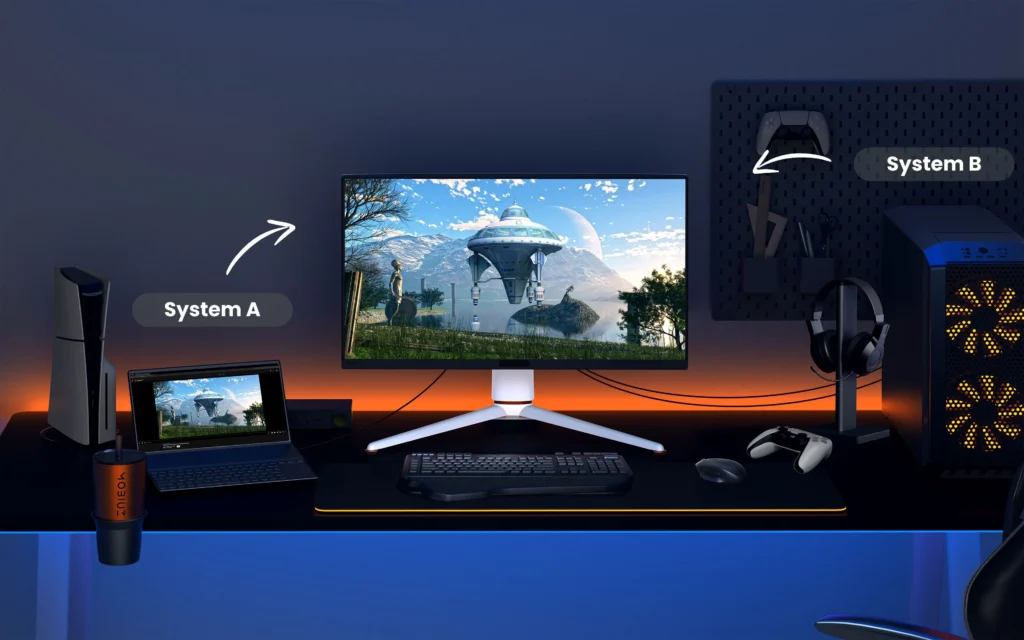
Dual-monitor KVM setups require correct cabling and compatible resolutions. This guide helps solve display detection issues.
What You Need
⦁ Your Sabrent KVM switch
⦁ Two monitors
⦁ Two sets of HDMI/DisplayPort cables
Step-by-Step Instructions
1. Check Cabling Setup
⦁ Each monitor must have two connections:
one to PC A and one to PC B, each going into the KVM.
2. Verify Input Source
Make sure the monitor is set to the correct input (HDMI 1, HDMI 2, DP, etc.).
3. Confirm Resolution Support
Ensure both monitors and both systems support the same resolution/refresh rate.
4. Power Cycle the KVM
Disconnect power for 10 seconds, reconnect, then test again.
Troubleshooting Notes
⦁ macOS may default to mirrored mode — enable extended mode in Display Settings.
⦁ Loose cables are the #1 cause of this issue.
Extra Tips
⦁ Use high-quality certified HDMI/DP cables for best stability.
⦁ Update your GPU drivers to improve multi-display detection.